A WooCommerce store needs more than a page view to understand what drives revenue. GA4 e-commerce events show how shoppers move from product view to purchase, and where they drop off. This guide covers the core events, the dataLayer structure and the checks that keep purchase data accurate.
Key takeaways
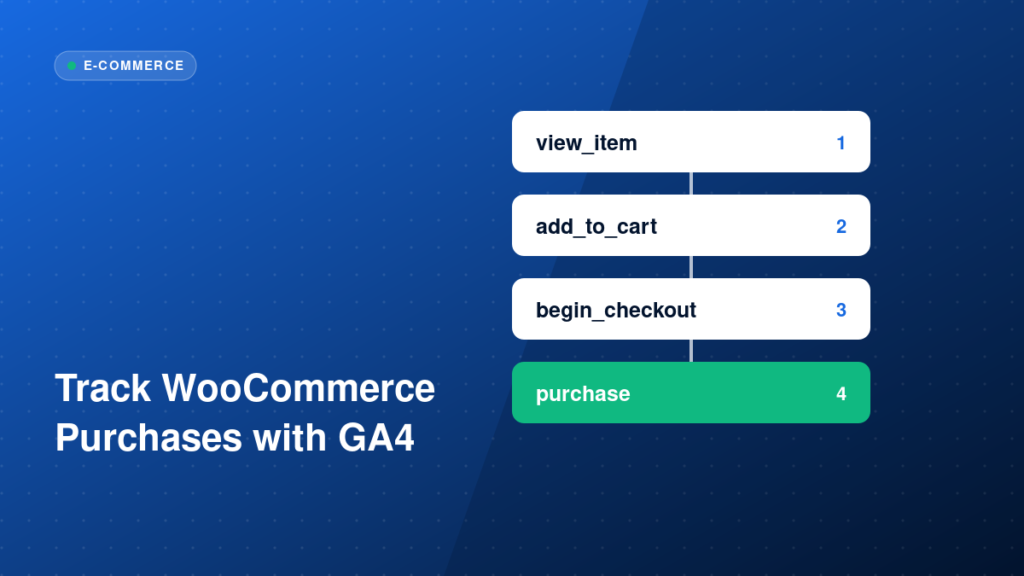
- Track the full funnel: view_item, add_to_cart, begin_checkout and purchase.
- The purchase event needs a unique transaction_id, value, currency and items.
- Send e-commerce data through the dataLayer and clear it between events.
- Compare GA4 purchases with WooCommerce orders to validate accuracy.
Why WooCommerce purchase tracking is often inaccurate
Common problems include purchase events firing on every reload of the thank-you page, missing transaction IDs, tax and shipping counted inconsistently, and payment gateways that redirect shoppers away before the thank-you page loads. Each one produces revenue that does not match the store.
If you want this built correctly, see our e-commerce tracking service.
Step-by-step implementation
1. Plan the events
At minimum, track view_item_list, view_item, add_to_cart, begin_checkout, add_payment_info and purchase. Match GA4 recommended names and parameters.
2. Output e-commerce data to the dataLayer
Use a reliable plugin or custom code that pushes structured e-commerce data on each step. Product data should include item_id, item_name, price, quantity and category.
3. Create GA4 event tags in GTM
Create one GA4 event tag for each event, triggered by the matching dataLayer event, and enable sending e-commerce data from the dataLayer.
4. Protect the purchase event
Fire purchase once per order, include transaction_id, and prevent re-firing on page reload, for example by tracking whether that order ID was already sent.
5. Decide how to handle value
Be consistent about whether value includes tax and shipping, and make sure the same rule applies to GA4, Google Ads and Meta.
Example: a purchase event in the dataLayer
window.dataLayer.push({ ecommerce: null });
window.dataLayer.push({
  event: 'purchase',
  ecommerce: {
    transaction_id: 'WC-10245',
    value: 89.90,
    currency: 'USD',
    items: [{ item_id: 'SKU-118', item_name: 'Sample Product', price: 89.90, quantity: 1 }]
  }
});
Common mistakes
- Firing purchase on every thank-you page load.
- Leaving out transaction_id, so duplicates cannot be detected.
- Not clearing the previous ecommerce object before a new push.
- Sending prices as text with currency symbols.
- Ignoring orders completed through redirect payment gateways.
Testing and validation
Place a real test order with a low-value product. In GTM Preview, confirm each event fires with the right items and values, then check DebugView. Compare the order in WooCommerce with the GA4 purchase, including value and transaction ID. Test with each payment method you offer.
Practical checklist
- Core e-commerce events planned
- Items array complete and consistent
- purchase includes transaction_id, value and currency
- Duplicate purchase protection in place
- Ecommerce object cleared before each push
- Redirect payment gateways tested
- GA4 revenue compared with WooCommerce
- Google Ads and Meta values match
FAQ
Do I need a plugin for WooCommerce tracking?
A well-built plugin can speed things up, but the output should still be checked in the dataLayer and in GA4.
Why does GA4 show less revenue than WooCommerce?
Common causes are consent, ad blockers, payment redirects, refunds and duplicate or missing events.
What about Shopify?
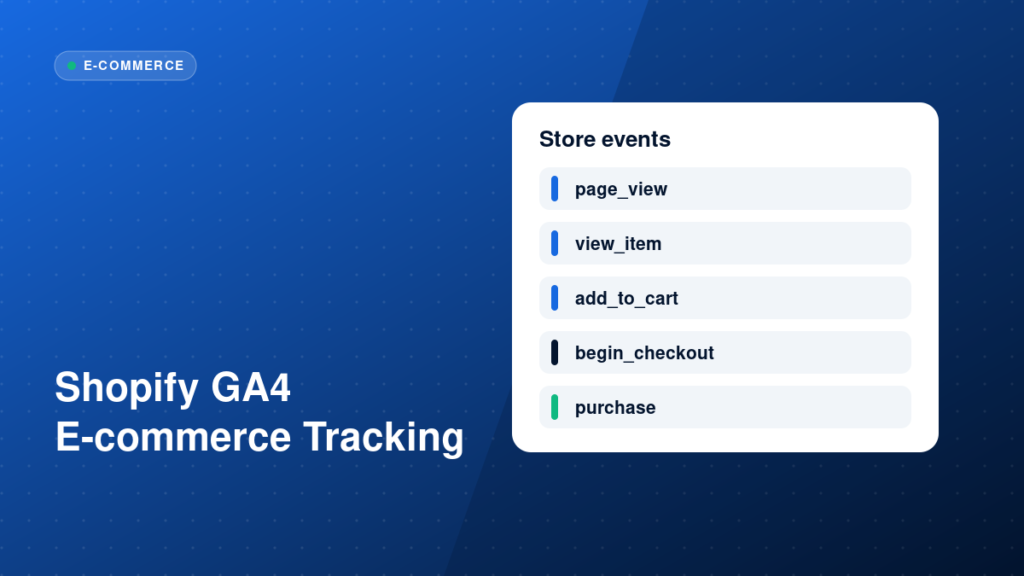
The events are similar. See our Shopify GA4 e-commerce tracking guide.
Next steps
Reliable e-commerce data lets you judge campaigns by revenue instead of clicks. For a store setup done and validated for you, see our e-commerce tracking service.