Shopify simplifies parts of tracking, but e-commerce measurement still needs care. The checkout, customer events and apps all affect what GA4 receives. This guide explains how to think about the Shopify customer journey and measure it accurately in GA4.
Key takeaways
- Map the Shopify journey to GA4 e-commerce events before choosing a method.
- Use one clear source for each event to avoid duplicates from apps and themes.
- Check the checkout and thank-you flow separately, because it behaves differently from the storefront.
- Validate revenue against Shopify orders.
Where Shopify tracking usually goes wrong
Stores often run several tracking sources at once: the native Google channel, a theme snippet, a GTM container and an app. The result is duplicate events, missing purchases at checkout and inconsistent revenue. Because Shopify controls the checkout, the way you track it depends on your plan and setup.
Our e-commerce tracking service and GTM for Shopify page explain the options.
Step-by-step implementation
1. Map the customer journey
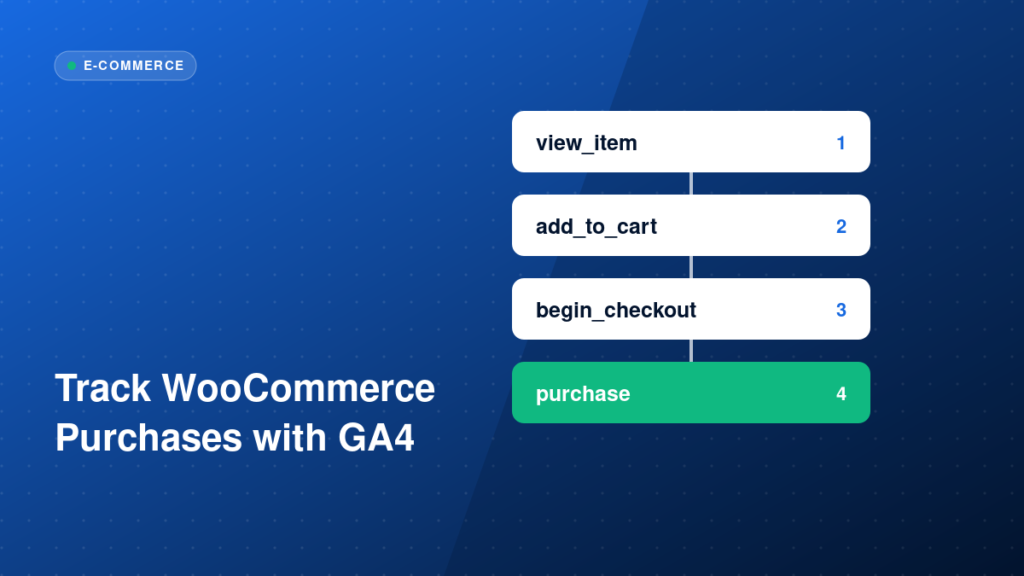
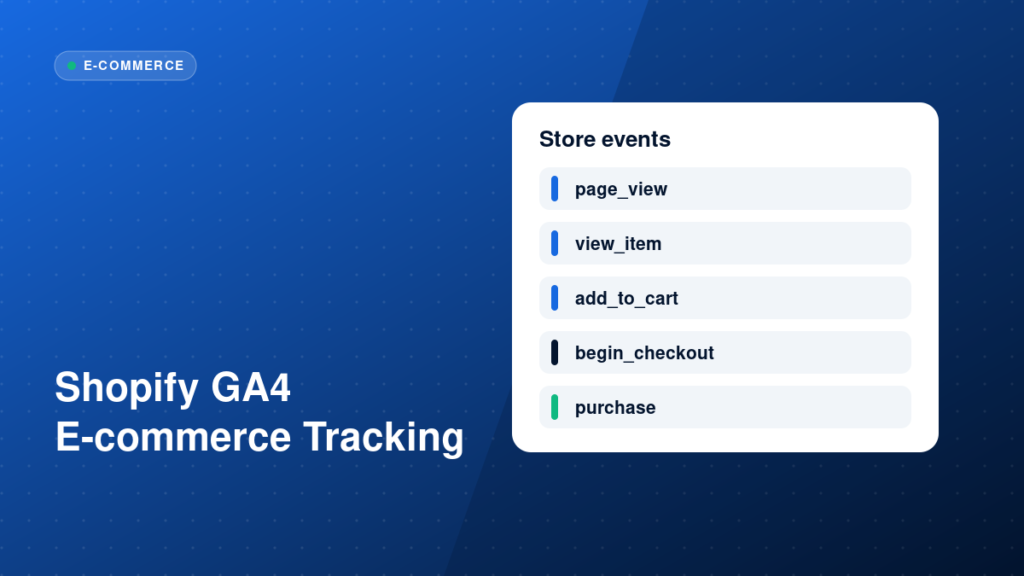
List the steps: browse collections, view product, add to cart, start checkout, add shipping and payment, purchase. Match each step to a GA4 event such as view_item, add_to_cart, begin_checkout and purchase.
2. Choose one integration method
Options include Shopify Google channel, Shopify customer events with a custom pixel, or a GTM-based setup. Pick one primary method and disable the others for the same events.
3. Implement the events
Send events with complete item data and correct currency. For a custom pixel, subscribe to Shopify customer events and map them to GA4 event names and parameters.
4. Handle the checkout and thank-you page
Confirm that purchase fires once per order, includes the order ID as transaction_id and carries the right value.
5. Connect advertising platforms
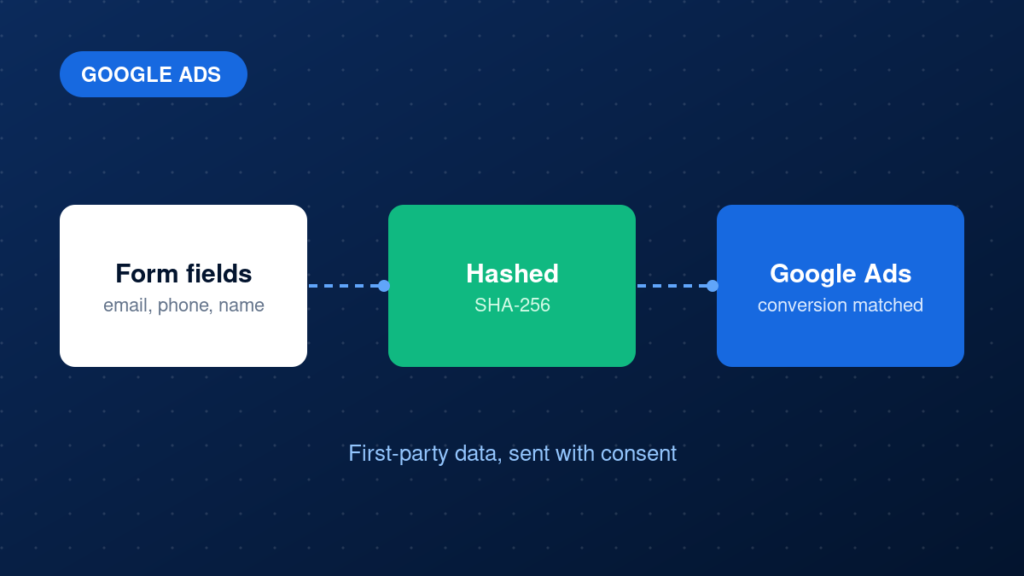
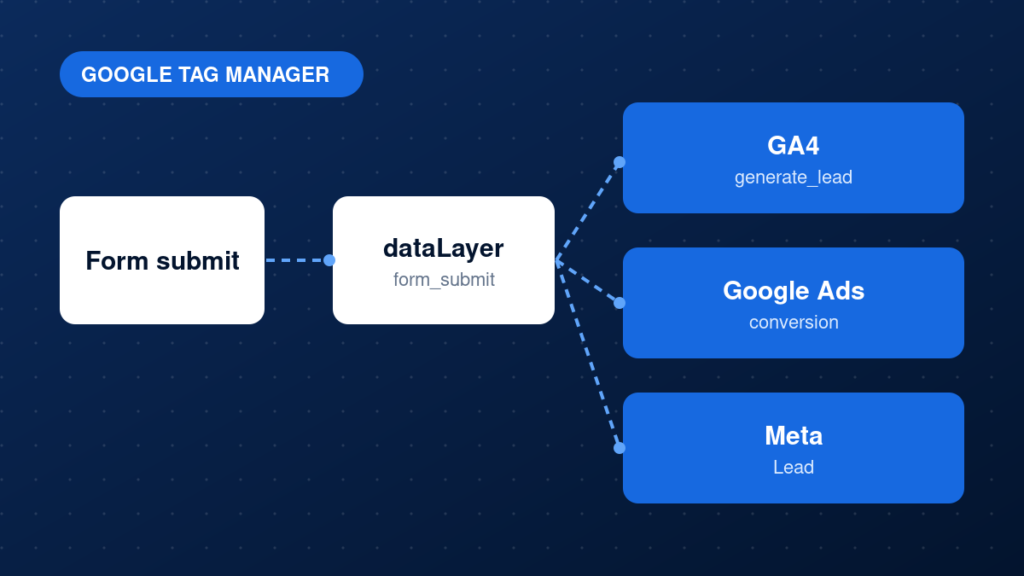
Send purchase data to Google Ads and Meta using the same order ID for deduplication where both browser and server events are used.
Example: a GA4 add_to_cart event
gtag('event', 'add_to_cart', {
  currency: 'USD',
  value: 39.00,
  items: [{ item_id: 'SKU-204', item_name: 'Sample Item', price: 39.00, quantity: 1 }]
});
Common mistakes
- Running the Google channel, a theme snippet and GTM together.
- Ignoring the checkout because it is not part of the theme.
- Sending wrong currency or value formats.
- Not testing discount codes, multiple items and different payment methods.
- Trusting app dashboards without comparing them with Shopify orders.
Testing and validation
Use a test order and check the events in your debugging tool and GA4 DebugView. Verify item details, value, currency and the order ID. Compare a week of GA4 purchases with Shopify orders and investigate large differences.
Practical checklist
- Journey mapped to GA4 events
- One primary tracking method chosen
- Other sources disabled
- Item data complete on every event
- purchase fires once with order ID
- Checkout tested with real payment methods
- Ad platforms receive matching data
- Revenue compared with Shopify
FAQ
Can I use GTM on Shopify?
Yes, for the storefront, and with customer events or a custom pixel for the checkout, depending on your plan and setup.
Why do my GA4 and Shopify revenues differ?
Refunds, taxes, shipping, consent, ad blockers and missed checkout events are common reasons.
Is the WooCommerce process similar?
The events are the same. See how to track WooCommerce purchases with GA4.
Next steps
Clean Shopify tracking makes product and campaign decisions much clearer. To have it configured and tested, see our e-commerce tracking service.