Over time, every Google Tag Manager container collects clutter: tags nobody remembers adding, triggers that no longer match the site, and duplicated events that quietly distort reports. A structured audit finds these problems before they cost you data or ad budget. Use this checklist to review a container systematically.
Key takeaways
- Audit the container against your measurement plan, not just for errors.
- Look for four types of problems: missing, duplicated, misconfigured and outdated tracking.
- Combine a container review with live testing in Preview mode.
- Document what you find and fix the highest-impact issues first.
What a GTM audit is looking for
A container can look tidy and still be wrong. A GA4 event may fire on the wrong trigger, a Meta tag may exist twice, or a conversion may be missing entirely because a form was rebuilt. Audits catch four kinds of issues: missing tracking for important actions, duplicated tags that double count, incorrectly configured tags with wrong IDs or parameters, and outdated tags for platforms you no longer use.
For a full professional review, see our tracking audit service or the dedicated Google Tag Manager audit.
Step-by-step implementation
1. Export and inventory the container
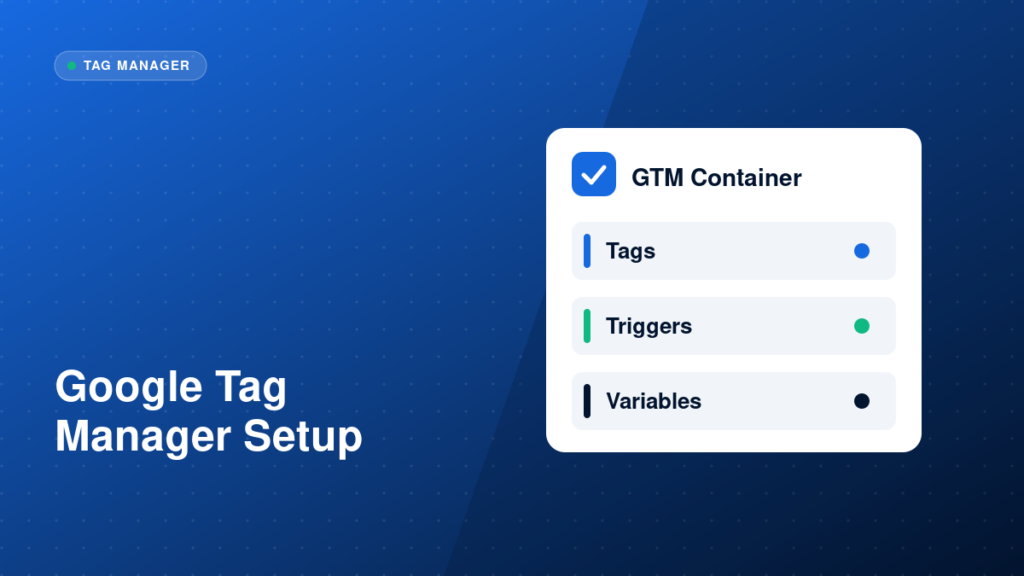
List every tag, trigger and variable, with its type, purpose and last edit. Note which platform each tag belongs to. Anything with no clear purpose goes on a review list.
2. Check the container is installed correctly
Confirm the GTM snippet is present once on every page, in the right place, and that no second container or hard-coded GA4 or Meta code duplicates your tags.
3. Review tags against your measurement plan
For each business action, confirm a tag exists, fires on the correct trigger and sends the right parameters. Mark anything measured that is not in the plan, and anything in the plan that is not measured.
4. Inspect triggers and variables
Look for triggers that are too broad, such as All Clicks with no conditions, and for fragile conditions such as CSS selectors and exact button text. Check that variables return values on the pages where they are used.
5. Look for duplicates and conflicts
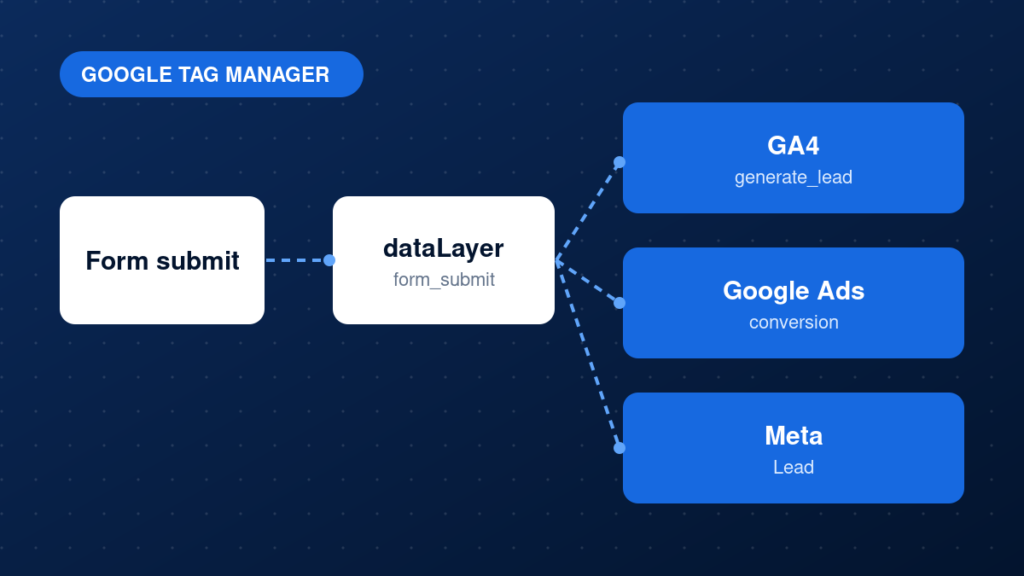
Search for repeated event names, several GA4 configuration tags and duplicated Meta or Google Ads tags. In Preview, a single action should produce a single event.
6. Check consent and privacy behaviour
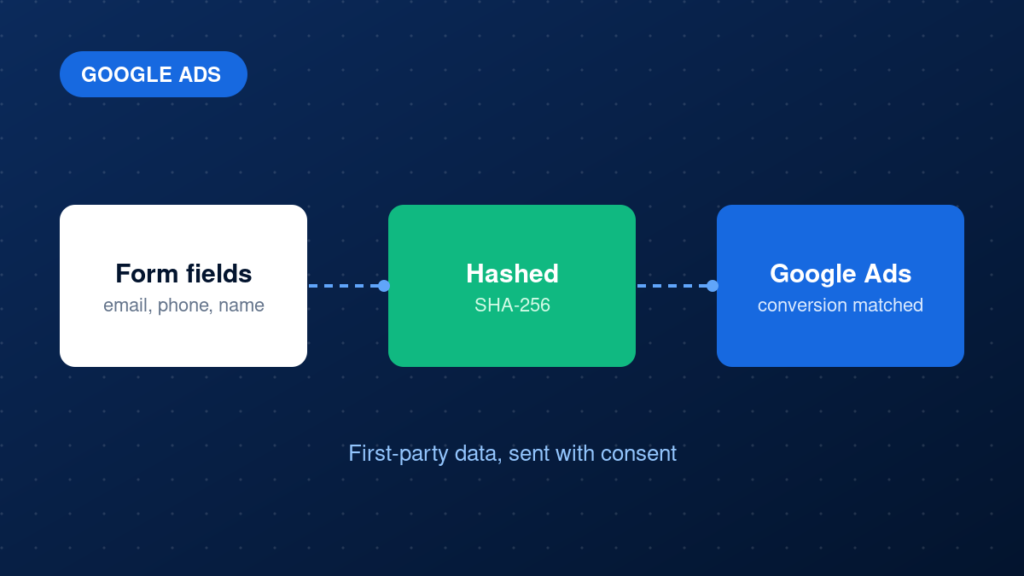
Confirm tags respect consent settings, that no tag fires before consent when it should not, and that personal data is not sent to analytics by accident, for example emails in URLs.
7. Retest the live site
Walk through the main journeys in Preview mode and GA4 DebugView, then compare the results with what is recorded in reports.
Example: a simple audit log format
Tag: GA4 - Event - generate_lead
Trigger: CE - form_submit
Status: OK
Notes: fires once, value missing
Action: add value and currency
Common mistakes
- Only reading the container and never testing the live site.
- Deleting old tags without checking whether reports depend on them.
- Fixing issues without recording what changed and why.
- Ignoring server-side, consent and cross-domain settings.
- Auditing once and never again.
Testing and validation
After you make fixes, publish a new version with clear notes and repeat the checks in Preview mode. Compare GA4 event counts, Google Ads conversions and platform data for a week before and after, keeping in mind that changes should improve accuracy, not just raise numbers.
Practical checklist
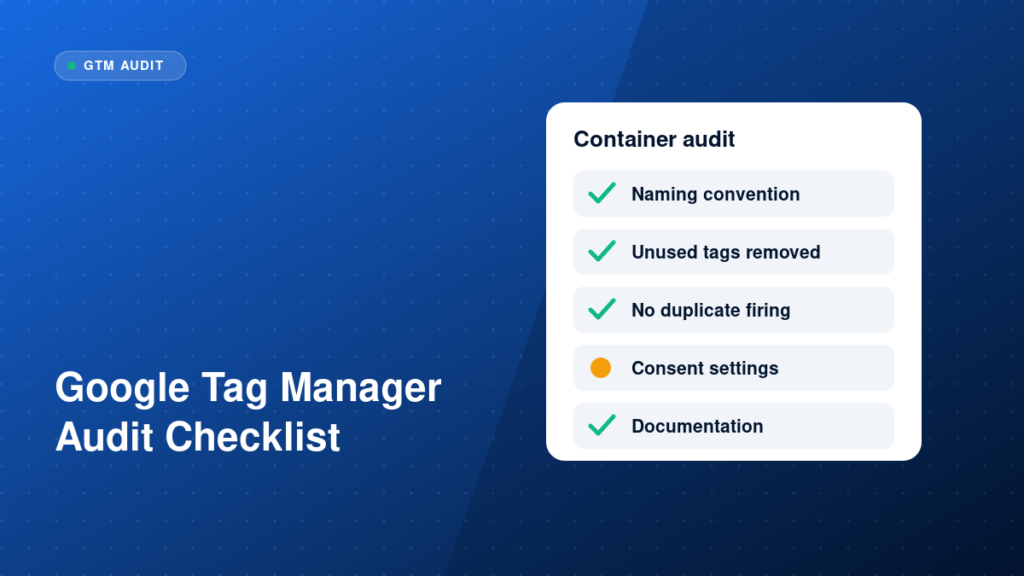
- Container installed once per page
- No duplicate GA4, Google Ads or Meta tags
- Every key action has a tag, trigger and parameters
- Triggers are specific and stable
- Unused tags, triggers and variables reviewed
- Consent behaviour tested
- Live journeys tested in Preview and DebugView
- Findings and fixes documented
FAQ
How often should I audit my GTM container?
At least every six months, and after redesigns, platform migrations or major campaign changes.
Can I audit GTM myself?
Yes, for basics. A specialist is worth it when data drives significant ad spend or when the setup includes e-commerce or server-side tracking.
What is the most common issue found?
Duplicate or misfiring tags, often after a site change or an extra plugin added its own tracking.
Next steps
A regular audit keeps your data trustworthy. If you would like an expert to review your container, explore our tracking audit, or begin with how to audit your website conversion tracking.